To start your program choose Start Application... on the Launch menu,
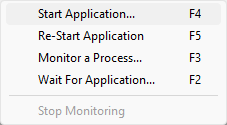
Keyboard shortcuts:

The launch program dialog will be displayed.
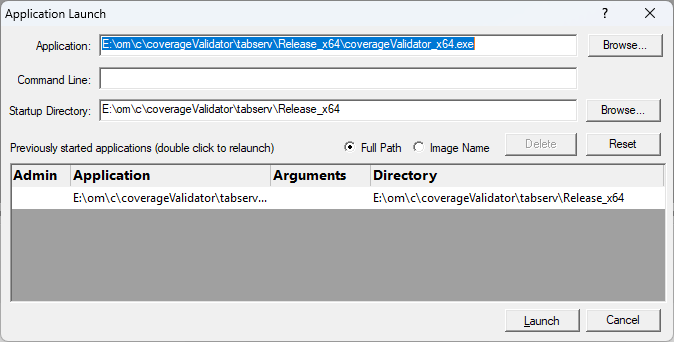
The picture shows some already launched programs shown in the scrollable list. You can relaunch these programs by double clicking their entry in the list. Depending on what you want to do with your program you have a choice of launching the program.
Detailed program start (1)
1) Type in the program name in the Application field, or click the Browse... button to use a file browser to choose the program to launch.
2) Type in the program arguments in the Arguments field.
3) Type in the program directory in the Startup Directory field, or click the Browse... button to use a directory browser to choose the directory.
4) Click on the Launch button to launch the program.
Page Fault Monitor will start the program and monitor the program for page faults.
Detailed program start (2)
1) Click on the program shown in the scrolled list that you want to start. The details for the program will appear in the Application, Arguments and Startup Directory fields.
2) Modify any of the Application, Arguments and Startup Directory fields as appropriate.
3) Click on the Launch button to launch the program.
Page Fault Monitor will start the program and monitor the program for page faults.
Repeat program start
Double click on the program shown in the scrolled list. The program will be launched automatically.
Page Fault Monitor will start the program and monitor the program for page faults.
If at any point you would like the fields reset, click on the Reset button.